Graphing Calculator – Plot Functions, Curves & Inequalities
📊 Graphing Calculator
Graphing Calculator – Plot Functions, Curves & Inequalities
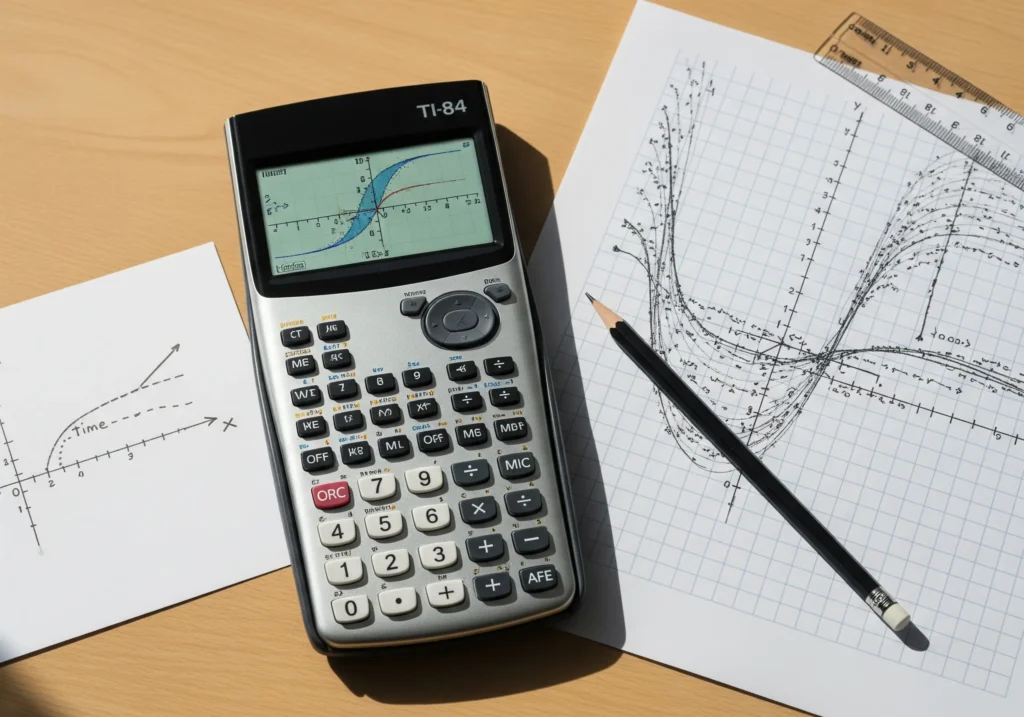
Math becomes much easier when you can see it. Instead of staring at equations on paper and trying to imagine their shape, a Graphing Calculator lets you bring them to life. Whether you’re plotting a simple line like y = 2x + 3, a curve like y = x², or even more complex functions such as y = sin(x), this tool helps you visualize exactly what’s going on. You just enter your function, set your X and Y ranges, and hit “Plot” — the graph appears instantly.
Why a Graphing Calculator is Important
- For students: It turns abstract formulas into visual shapes, making it easier to understand algebra, geometry, trigonometry, and calculus.
- For teachers: A great way to demonstrate concepts during lessons.
- For engineers & professionals: Quick visualization of formulas, models, and inequalities.
- For everyday learners: Helps check homework, explore math, or experiment with new functions.
In short, it’s not just a calculator — it’s a visual learning tool.
What You Can Enter in the Calculator
- Function (f(x)): Example: x^2, sin(x), 2x+3.
- X Minimum & X Maximum: The horizontal range of your graph. Example: -10 to 10.
- Y Minimum & Y Maximum: The vertical range of your graph. Example: -5 to 20.
You’re in control of the “window” that defines what part of the graph you want to see.
The Formula Behind the Graph
The graphing calculator works by:
- Taking your function (say, y = x²).
- Substituting many small values of x within your chosen range.
- Calculating the matching y values.
- Plotting these (x, y) points on a coordinate system.
- Connecting them smoothly to show the curve, line, or wave.
This is the same principle behind professional math software, just simplified for easy use.
How the Calculator Works – Step by Step
- Enter your function in the box (use x as the variable).
- Examples: x^2, 2x+3, sin(x), log(x).
- Examples: x^2, 2x+3, sin(x), log(x).
- Set your X and Y ranges.
- X Minimum: how far left you want the graph to go.
- X Maximum: how far right you want the graph to go.
- Y Minimum & Maximum: how tall or short you want the window.
- X Minimum: how far left you want the graph to go.
- Click “Plot Graph.”
- The calculator generates hundreds of points by plugging values of x into your function.
- It then draws the curve or line through those points.
- The calculator generates hundreds of points by plugging values of x into your function.
- View the result.
- Zoom in or out by adjusting the ranges.
- Try new functions to compare shapes.
- Zoom in or out by adjusting the ranges.
- Plot inequalities (optional). Some calculators also shade the solution area of inequalities like y > x + 2.
FAQs



Popular Calculators

Cooking Measurement Converter – Cups, Ounces, Milliliters, Grams & More

Hourly to Salary Converter – Calculate Annual Income

Corrected Calcium Calculator | Accurate Serum Calcium Interpretation

BUN to Creatinine Ratio Calculator | Assess Kidney Function
Fraction to Decimal Converter